Journal · Digital Design · Oct 3, 2026
How to show digital art in a room mockup without misleading buyers
Make a product preview that shows the artwork clearly, respects scale and tells buyers what they will actually download.
By Nexora Vault
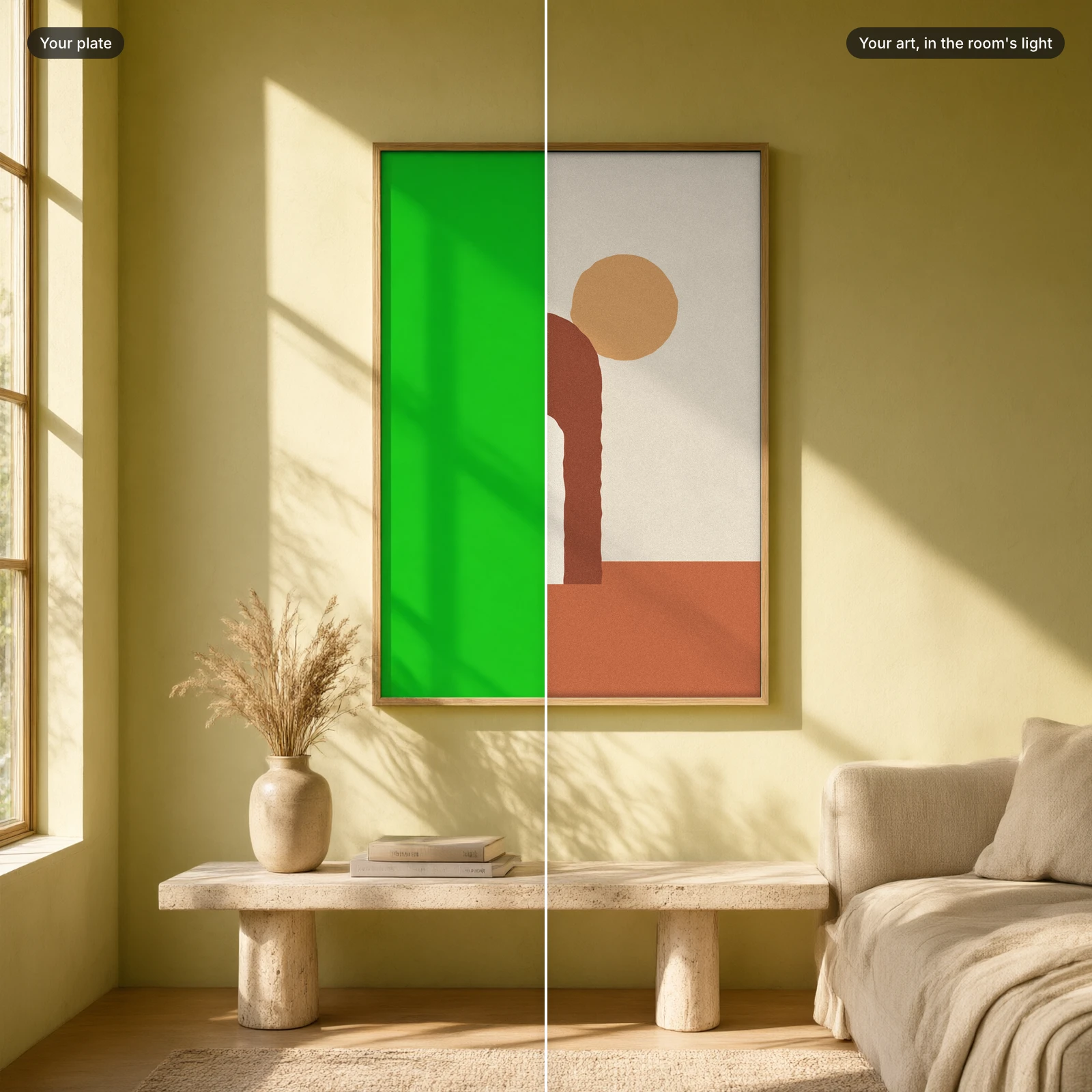
A room scene gives artwork context, but a buyer also needs to see the file they are purchasing. A useful gallery does both. The first image should make the art easy to recognize at thumbnail size; later images can explain size, detail and delivery.
Start with the actual artwork
Place the final artwork into the frame or device opening. Do not use a different image to imply a style the download does not include. Keep the artwork large enough that its composition is legible when the gallery is reduced to a small storefront tile. A beautiful room with a tiny print sells the room more than the print.
Make scale believable
Check frame proportions against the file ratio and nearby furniture. Avoid stretching a portrait print to fit a square frame. If the scene uses a mat, show the artwork's visible area accurately. Shadows should follow the room's light direction; heavy floating shadows can make a simple mockup feel synthetic.
Give each gallery image a job
- Hero: the real product, obvious and readable.
- Detail: crop close enough to show texture, typography or line work.
- Context: one believable room or device scene.
- Contents: show the number of files, formats and size options exactly as delivered.
Use a caption to explain that the frame, room or device is a display example when it is not included. If a preview shows several prints, say whether the buyer receives all of them or only one.
Our Mockup Engine is built for presenting real art in room and device scenes. For a ready art set to test with it, browse Earth & Texture. Before creating product images, confirm that your license covers the intended commercial use.